Hard & Soft Links
As we saw earlier, Unix files consist of two parts: the data part and the filename part.
The data part is associated with something called an ‘inode’. Inode is like an index number that helps is to find where the data is, the file permissions, etc. for the data.
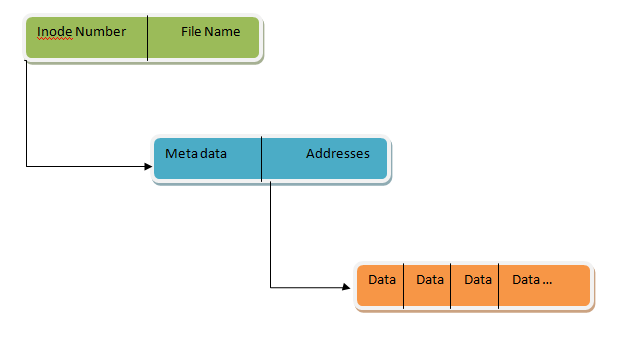
All Unix variants include at least the following attributes, which are specified in the POSIX standard.
- File type
- Number of hard links associated with the file
- File length in bytes
- Device ID (i.e., an identifier of the device containing the file)
- Inode number that identifies the file within the filesystem
- UID of the file owner
- User group ID of the file
- Timestamps that specify the inode status change time, the last access time, and the last modify time
- Access rights (r,w,x values for user, group and others)
- File mode (sticky, setuserid, setgroupid)
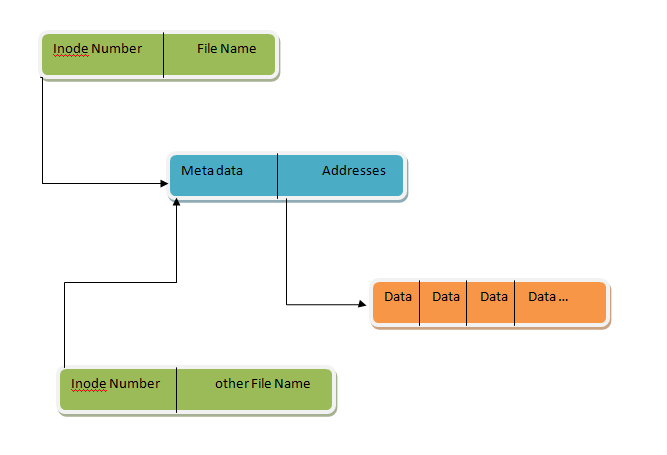
Hard Links: When more than one file references the same inode entry.
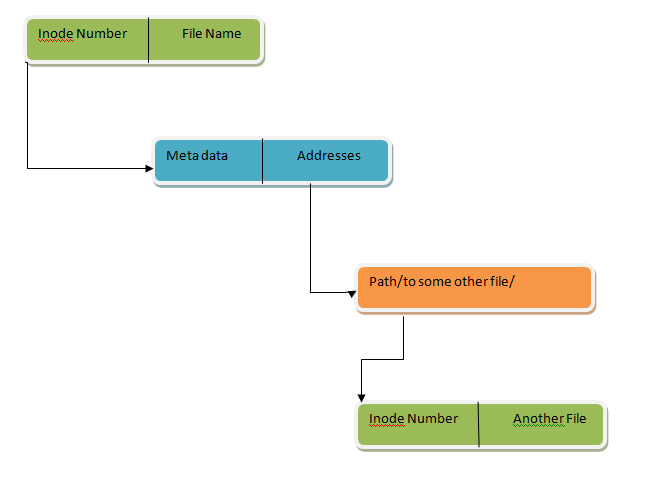
Soft Links: When the file’s data part contains a link/path to another file. The OS recognizes this as a special file and so redirects all open/read/writes to the other file.
ln command There are 3 common forms in which ln is used. $ ln target link_name :create link to target with the link name “link_name” in current directory. $ ln target :create link to target with the same link name. $ ln target directory :create link to target (link name same) in the specified directory.
eipe@eipe-system:~$ cat>a this is a file eipe@eipe-system:~$ cat a this is a file eipe@eipe-system:~$ cd temp eipe@eipe-system:~/temp$ ln ../a alink eipe@eipe-system:~/temp$ ls alink eipe@eipe-system:~/temp$ cat alink this is a file
note that the link will be displayed like a normal file. No details that the file is a link is given to the external user.
Hard links have two limitations:
- It is not possible to create hard links for directories. (to avoid cycles)
- Links can be created only among files included in the same filesystem
Soft links (Symbolic links) are short files that contain a pathname of another file. The pathname may refer to any file or directory located in any filesystem; it may even refer to a nonexistent file. The unix command is the same but with -s option.
Example:
eipe@eipe-system:~$ cat>t thisisafile eipe@eipe-system:~$ cd temp eipe@eipe-system:~/temp$ ln ../t thlink eipe@eipe-system:~/temp$ ls thlink eipe@eipe-system:~/temp$ ln -s ../t tslink eipe@eipe-system:~/temp$ ls thlink tslink
eipe@eipe-system:~/temp$ ls -la total 12 drwxr-xr-x 2 eipe eipe 4096 2010-12-03 20:09 . drwxr-xr-x 48 eipe eipe 4096 2010-12-03 19:38 .. -rw-r–r– 2 eipe eipe 6 2010-12-03 14:39 thlink lrwxrwxrwx 1 eipe eipe 4 2010-12-03 20:09 tslink -> ../t
Note that for soft(symbolic) links the number is 1 but we get a description. Also for ‘..’ the number is 48 meaning there are 48 directories under the parent directory. How do we know that 2 files are the same (one being a hard link of another)? Using -i option to print inode numbers
eipe@eipe-system:~$ ls -i -l -a 1055026 -rw-r–r– 3 eipe eipe 0 2010-12-03 20:14 t 1055062 drwxr-xr-x 2 eipe eipe 4096 2010-12-03 20:09 temp 1704500 drwxr-xr-x 2 eipe eipe 4096 2010-11-24 11:13 Templates 1708831 drwxr-xr-x 2 eipe eipe 4096 2010-11-24 23:49 .themes 1055026 -rw-r–r– 3 eipe eipe 0 2010-12-03 20:14 thlink
Creating Symlinks the Easy way The file managers in both GNOME and KDE provide an easy method of creating symbolic links.
- With GNOME, holding the Ctrl+Shift keys while dragging a file will create a link rather than copying (or moving) the file.
- With KDE, a small menu appears whenever a file is dropped, offering a choice of copying, moving, or linking the file.